
SRA 2D: ground settlement analysis for tunnelling
SRA 2D (Structure Response Analysis) was researched and developed by the Institute of Information Technology in Civil Engineering, Hanoi University of Civil Engineering, and VN Tunnel and Underground, Inc. (VNTU Inc.). It calculates the ground settlement caused by bored tunnels, cut-and-cover tunnels and station excavations, then assesses the damage to buildings and utilities along the route.
From the tunnel alignment in AutoCAD to the damage category of each building
You supply the tunnel alignment, the existing ground line, the top of rail line, the soil layers and the lists of buildings and utilities. SRA 2D divides the route into cross sections, calculates the settlement trough at each one and joins them into settlement contours on plan.
- Calculate ground settlement and lateral movement at every cross section
- Draw five settlement contours (0.125, 0.25, 0.5, 1.0 and 1.5 in) and export them to DXF
- Single or twin tunnels, cut-and-cover segments at either end, several station excavations
- Calculate the maximum tensile strain and damage category of each building, on shallow or pile foundations
- Calculate settlement and tensile strain of utilities crossing or running along the route
- Read the alignment from AutoCAD (DXF); import and export buildings and utilities through Excel
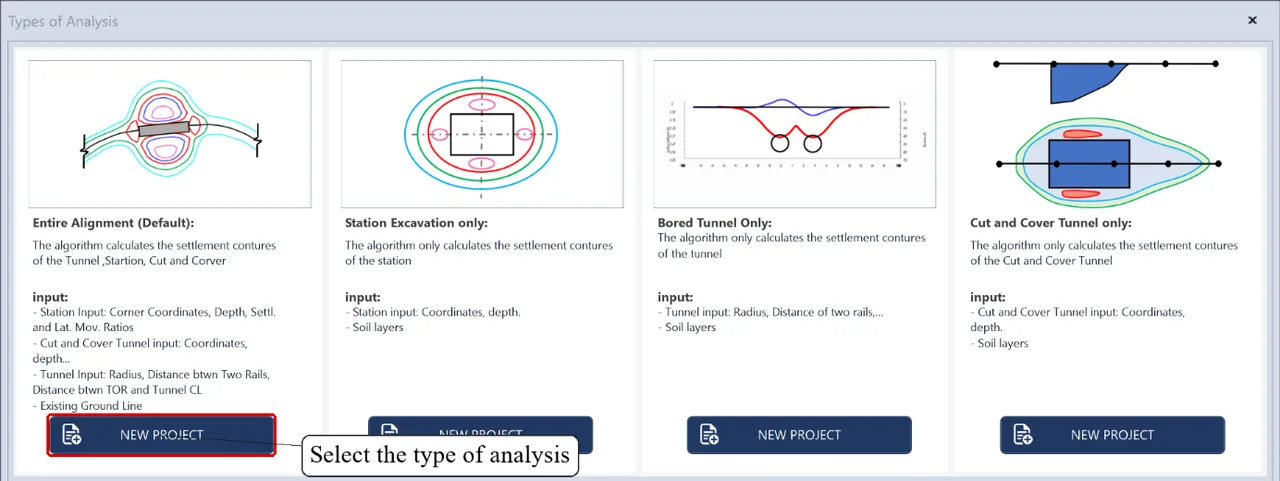
Four types of analysis, chosen when you create a project
Picking the right type means you only enter the data that calculation needs.
-
Entire alignment (default)
Settlement from the bored tunnel, stations and cut-and-cover segments, plus the effect on buildings and utilities. Needs the tunnel, stations, cut-and-cover, ground line, top of rail line and soil layers.
-
Station excavation only
Settlement contours around the station only. Needs corner coordinates, excavation depth and soil layers.
-
Bored tunnel only
Settlement from the bored tunnel only. Needs the tunnel radius, rail spacing and soil layers.
-
Cut-and-cover only
Settlement from the cut-and-cover tunnel only. Needs its coordinates, depth and soil layers.
Calculation methods in SRA 2D
The Formula settings panel at the lower left lets you choose the method for each group of calculations; click Apply to use it.
| Calculation | Methods |
|---|---|
| Settlement contours, bored tunnel | O'Reilly; Cording |
| Settlement due to open excavation | Hsieh et al.; Canadian method |
| Building damage category | Cording; Burland |
| Utility damage | Transverse utility; longitudinal utility |
For bored tunnels, following O'Reilly and New (1982), the transverse settlement trough is a Gaussian curve: S(x) = Smax·exp(−x²/2i²), where the trough width i = K·z0, z0 is the depth of the tunnel axis and K depends on the soil. The maximum settlement Smax follows from the volume of ground lost, which is the volume loss VL times the tunnel's cross-sectional area. That is why every segment of the route in SRA 2D carries a VL and a K value.
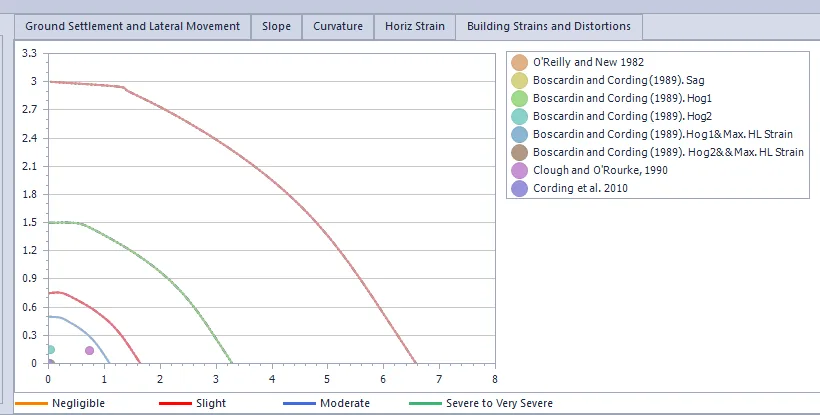
The building damage chart plots the result against the limits of Boscardin and Cording (1989), Clough and O'Rourke (1990) and Cording et al. (2010), in four categories: negligible, slight, moderate, and severe to very severe.
The calculation methods, sample spreadsheets, result checking and acceptance testing of the software were carried out by VNTU Inc. engineers.
Analysing a tunnel route in SRA 2D, step by step
1. Prepare the alignment drawings in AutoCAD
SRA 2D reads the alignment from DXF files, so tidy the drawings first:
- Bring the start of the route to an even station (+00). The plan alignment must start at the same station as the existing alignment; if that starts at 940+00, erase everything on the plan line before 940+00.
-
If the line is broken, use
JOINto make it one polyline. -
Place a
POINTat the start, then use a PathARRAYto spread points along the route every 100 ft. - If there is a cut-and-cover segment at the start, extend the line back by about half its length. For a 1,900 ft segment (0+00 to 19+00), step back about 9+50.
-
For the existing alignment, select the whole drawing and
MOVEit to the origin (0,0). - Save As AutoCAD 2000/LT2000 DXF (*.dxf).
2. Create a project
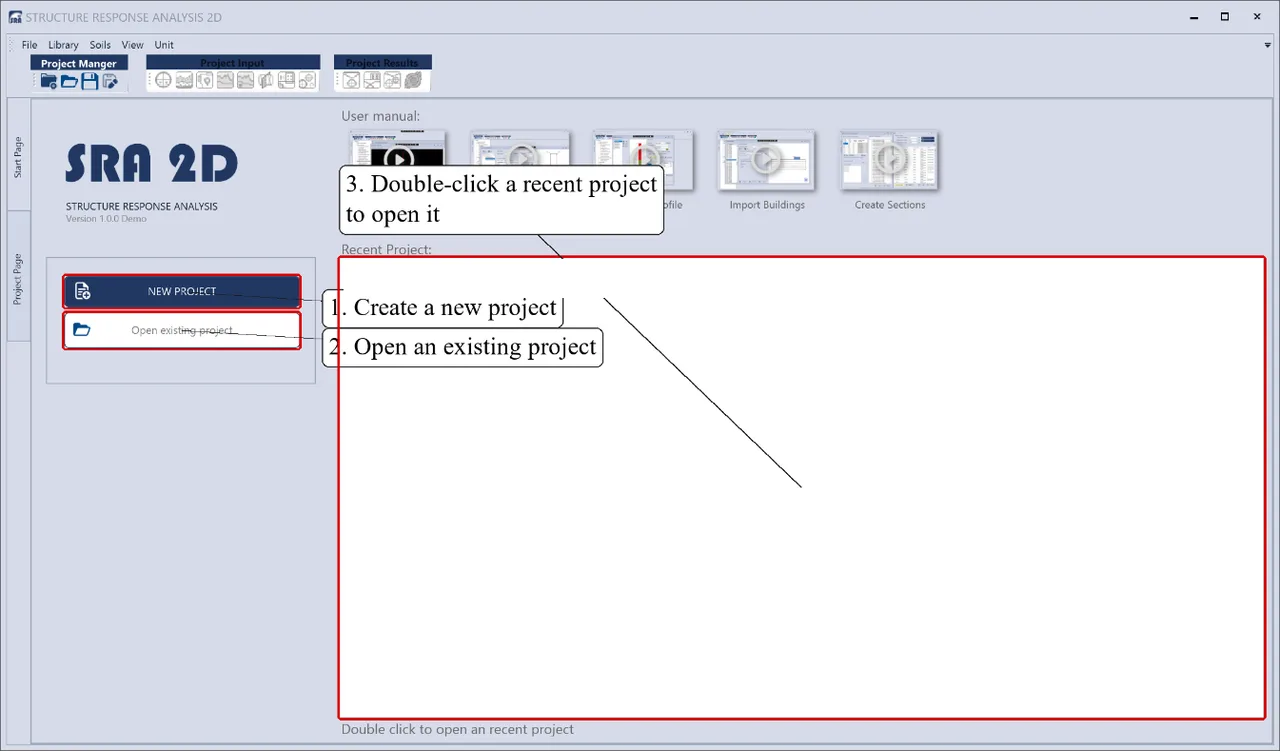
The start page offers NEW PROJECT and Open existing project; recent projects are listed on the right, double-click one to open it. For a new project, pick one of the four analysis types, then enter the project name, the folder (Browse) and the units: U.S customary (ft, in) or Metric SI (m, cm). Click OK.
3. Enter the tunnel section
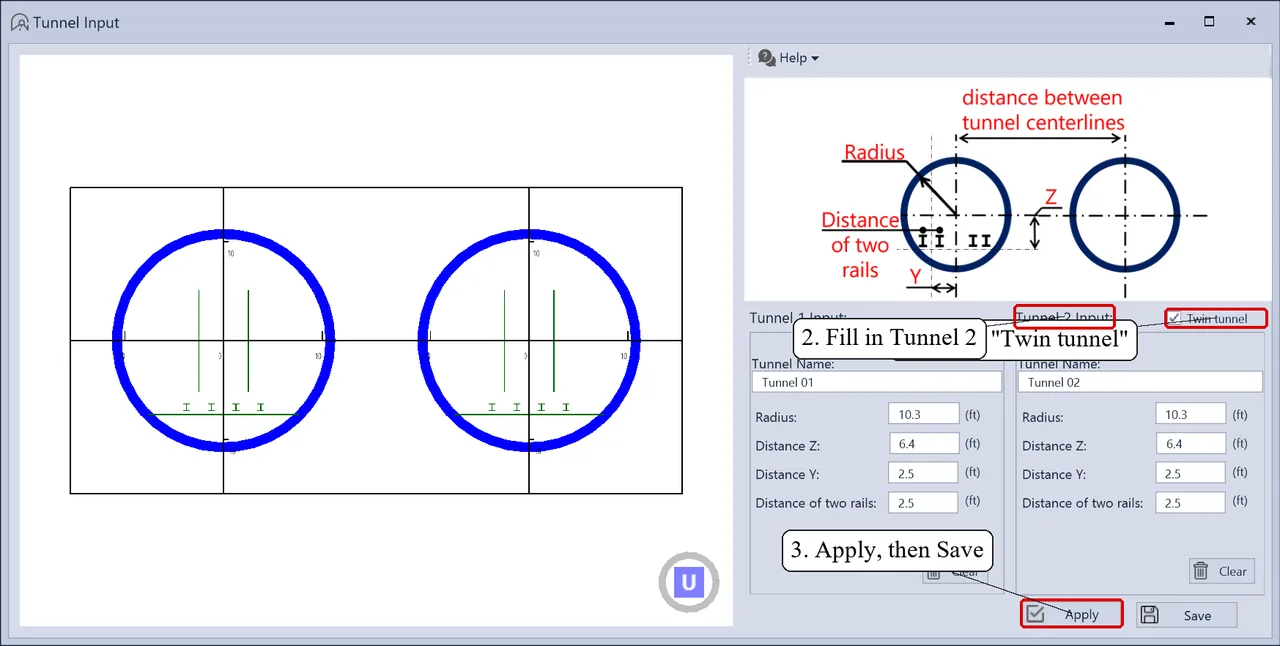
Open Bored Tunnel Section and fill in:
- Radius: from the tunnel centre to its edge.
- Distance Z: vertical distance from the tunnel centre to the top of rail.
- Distance Y: horizontal distance from the tunnel centre to the rail; Distance of two rails: the rail spacing.
- Twin tunnels: tick Twin tunnel, fill in Tunnel 2 and the distance between the tunnel centrelines.
Click Apply to draw the section, and Save once it looks right.
4. Define the soil layers
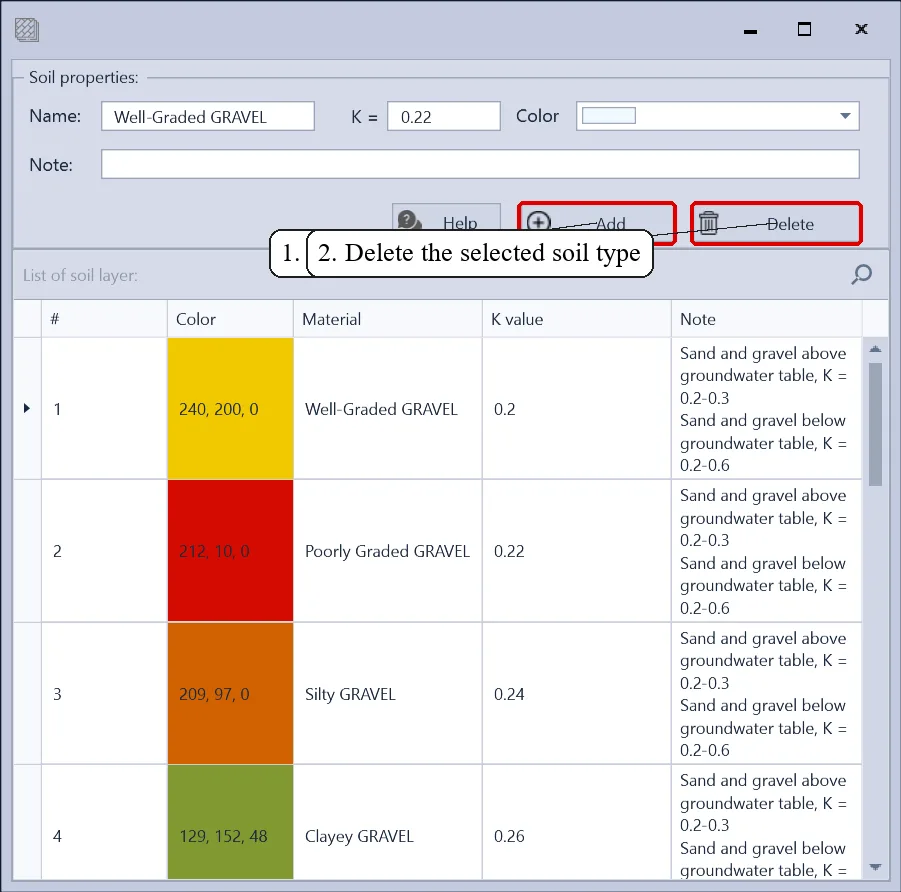
In Soil Profile, click Material to open the soil library. Each soil type has a K value, a colour and a note; for example Well-Graded GRAVEL has K = 0.2, with the note that sand and gravel above the groundwater table has K = 0.2–0.3 and below it K = 0.2–0.6. Add your own types with Add and give each layer its own colour.
Then build the soil profile: enter the layer, its top and bottom, whether it is above or below groundwater, and click Add Layer; Insert Layer puts a new layer above the selected one. When the profile is complete, click Add Profile and Save.
5. Load the alignment, ground line and top of rail
- Alignment Plan: choose the direction of subdividing, open the alignment DXF, pick the layer that holds the route and enter the starting station. For twin tunnels, pick a layer for each tunnel.
- Existing Ground Line and Top Of Rail Line: open a DXF, XML or Excel file, pick the layer, enter the starting station and click Apply. Both lines can be saved back to XML, DXF or Excel.
- Open Alignment Overview to check both lines before calculating.
6. Station excavations and cut-and-cover
In Station excavations, each station has a name, the excavation depth below top of rail (TOR), the settlement to excavation depth ratio and the lateral movement to excavation depth ratio. Enter the X, Y coordinates of the four corners of the main or secondary excavation, click Add for each point, then Add Station and Save. View all stations in plan shows every station on plan so you can check its position.
Cut-and-cover tunnels are entered as a Start Segment and an End Segment, each with coordinates and depth.
7. Create cross sections and assign soil
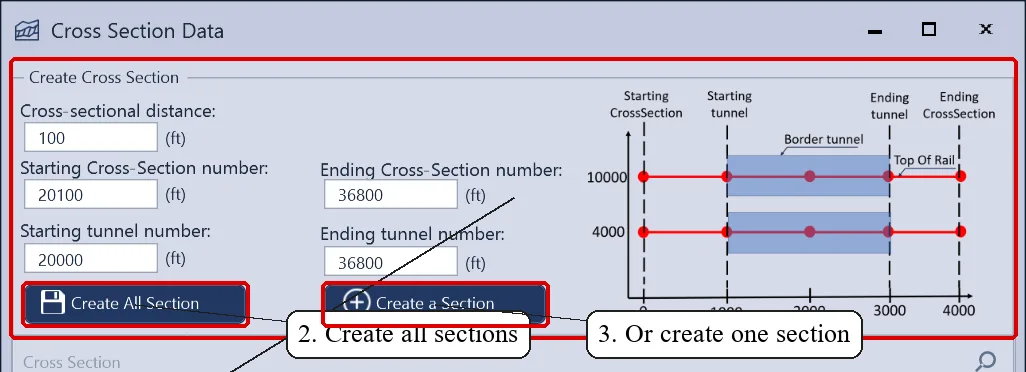
In Cross Section Data, enter the spacing between sections (for example 100 ft), the first and last cross-section stations, and the stations where the bored tunnel starts and ends. The diagram on the right explains each value. Click Create All Section, or Create a Section for a single one.
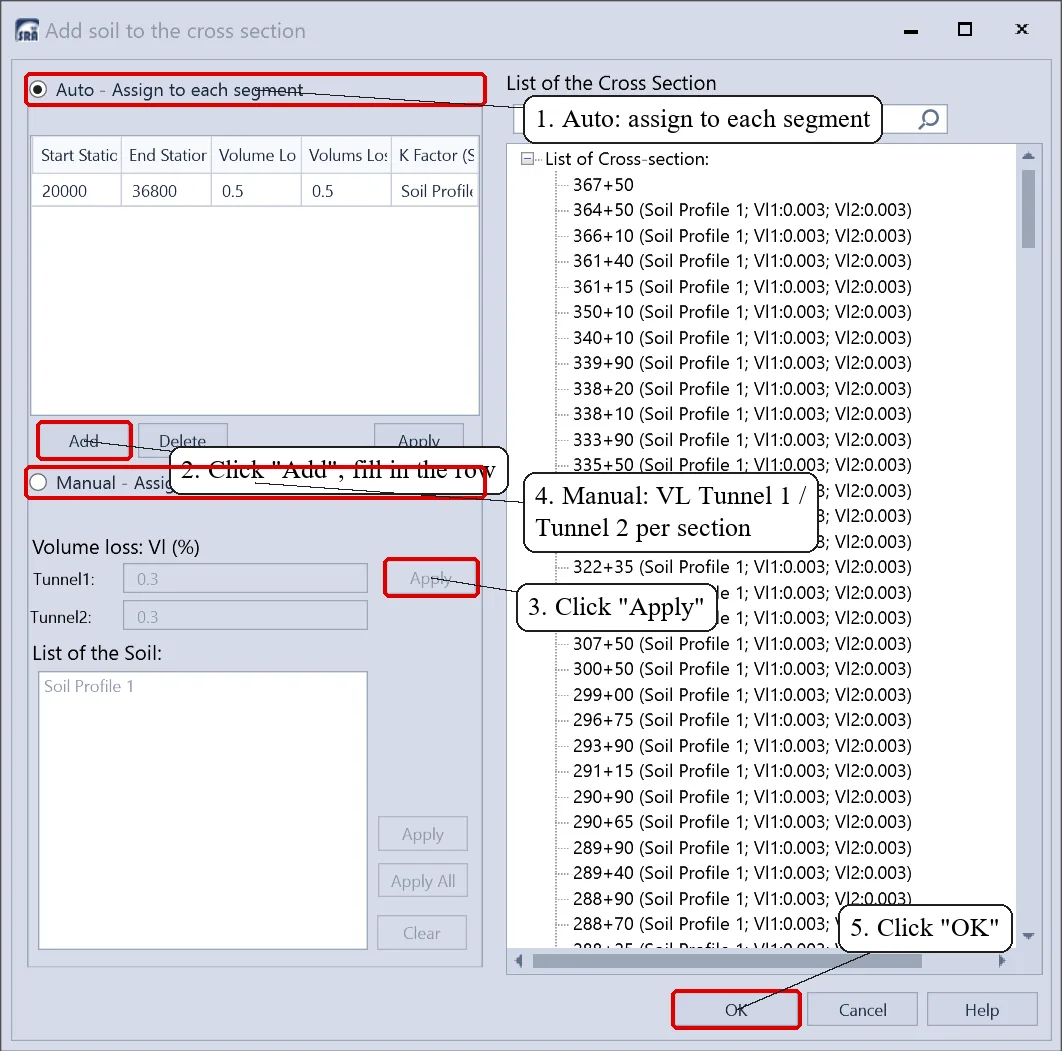
Click Assign soil profile. In Auto mode each row is one segment of the route: start station, end station, volume loss VL (%) and soil profile (which carries K). Twin tunnels can have a different VL for each bore: switch to Manual, enter VL for Tunnel 1 and Tunnel 2 for the selected sections and click Apply. The list on the right shows the soil profile, VL1 and VL2 of every section.
8. Enter buildings and utilities
- Buildings: open the Excel Building table and click Open Excel file... to read the list (.xlsx). Columns are matched by header name, so both the Single Bore and Twin Bore templates work; you can also copy rows in Excel and paste them with Ctrl+V.
- The grey columns are filled in by the software: maximum tensile strain, damage category and distance between tunnel centrelines. They update every time the contours are run.
- Each building has a representative section (ground elevation, depth of tunnel springline, VL for both tunnels, K) that can be edited for that building alone. Pile-founded buildings also get a list of piles.
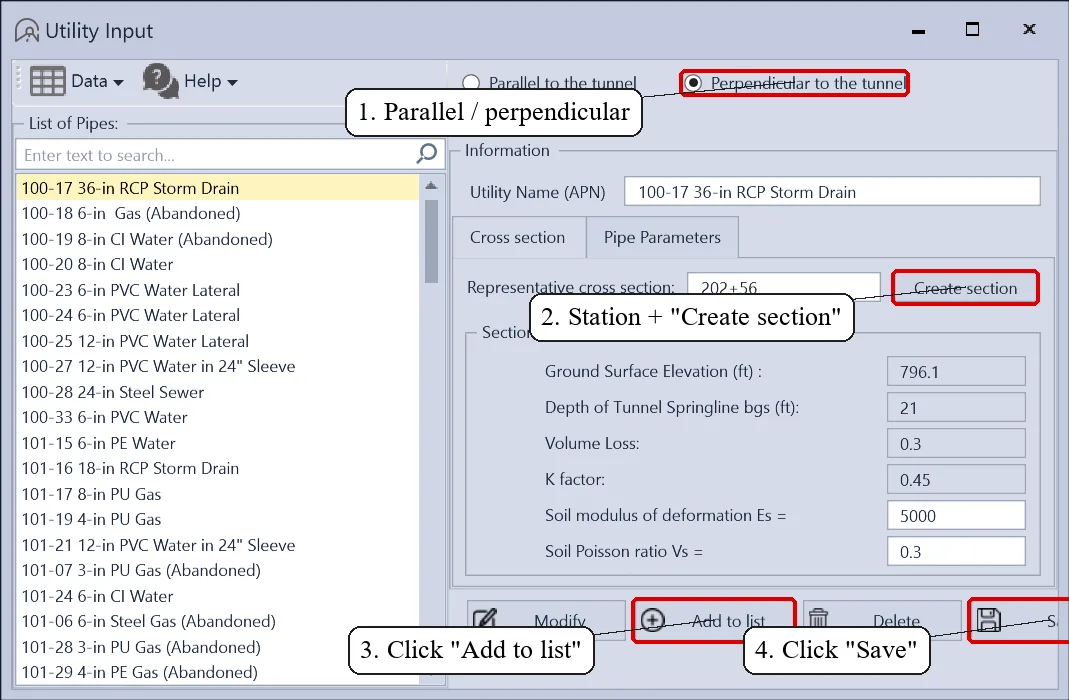
- Utilities (Utility Input): choose parallel or perpendicular to the tunnel, enter the station of the representative section and click Create section, then fill in the pipe and soil parameters (deformation modulus Es, Poisson's ratio). The pipe list also imports from and exports to Excel.
9. Run the analysis and read the trough
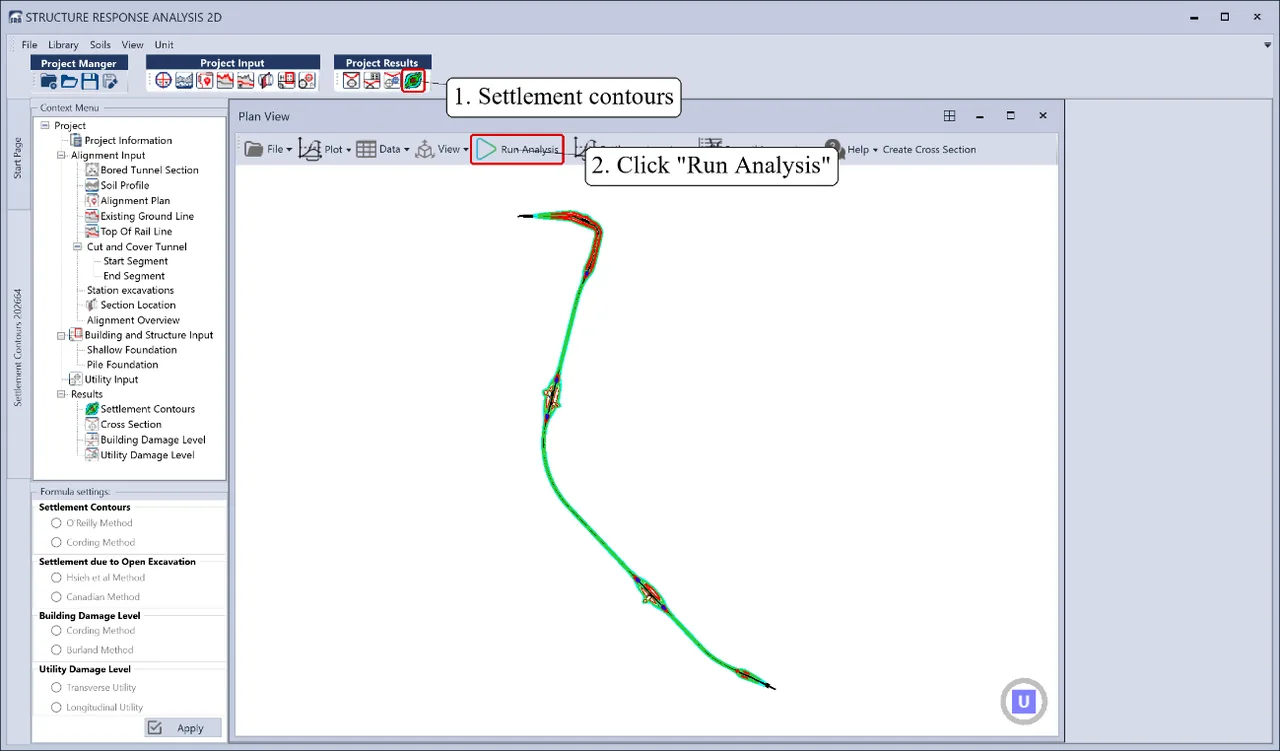
Open Settlement Contours and click Run Analysis. SRA 2D calculates settlement at every section, draws the five contours, then updates the maximum tensile strain and damage category of every building. With the Hsieh method for open excavations, the trough is drawn as straight lines through the control points 0, 0.5He, 2He and 4He (He is the excavation depth) to set it apart from the Canadian method.
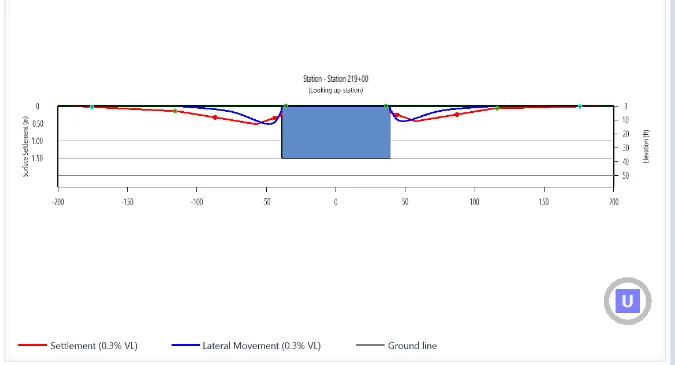
To inspect a section, double-click it in the list: the settlement trough (red) and lateral movement (blue) appear on the right, with the maximum settlement Smax.
10. Smooth and export the contours
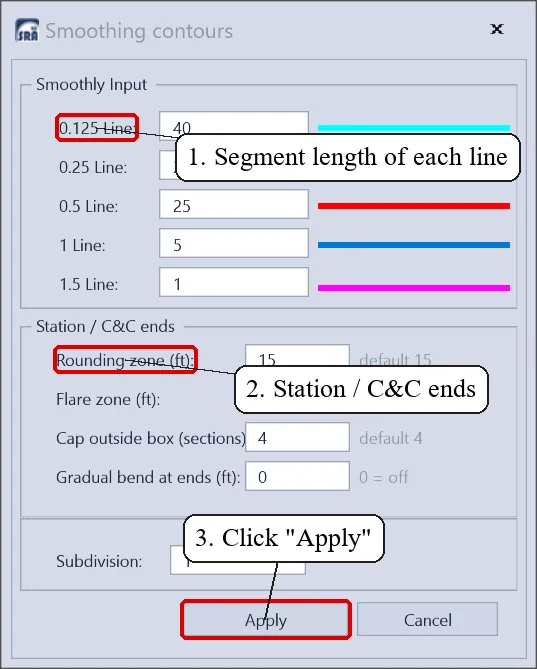
Click Smoothing contours. In Smoothy Input, each contour line has its own segment length; Subdivision breaks lines into smaller pieces. The Station / C&C ends group shapes the contours around the ends of stations and cut-and-cover boxes: rounding zone (default 15 ft), flare zone, cap outside box (default 4 sections) and gradual bend at ends (0 = off). Click Apply.
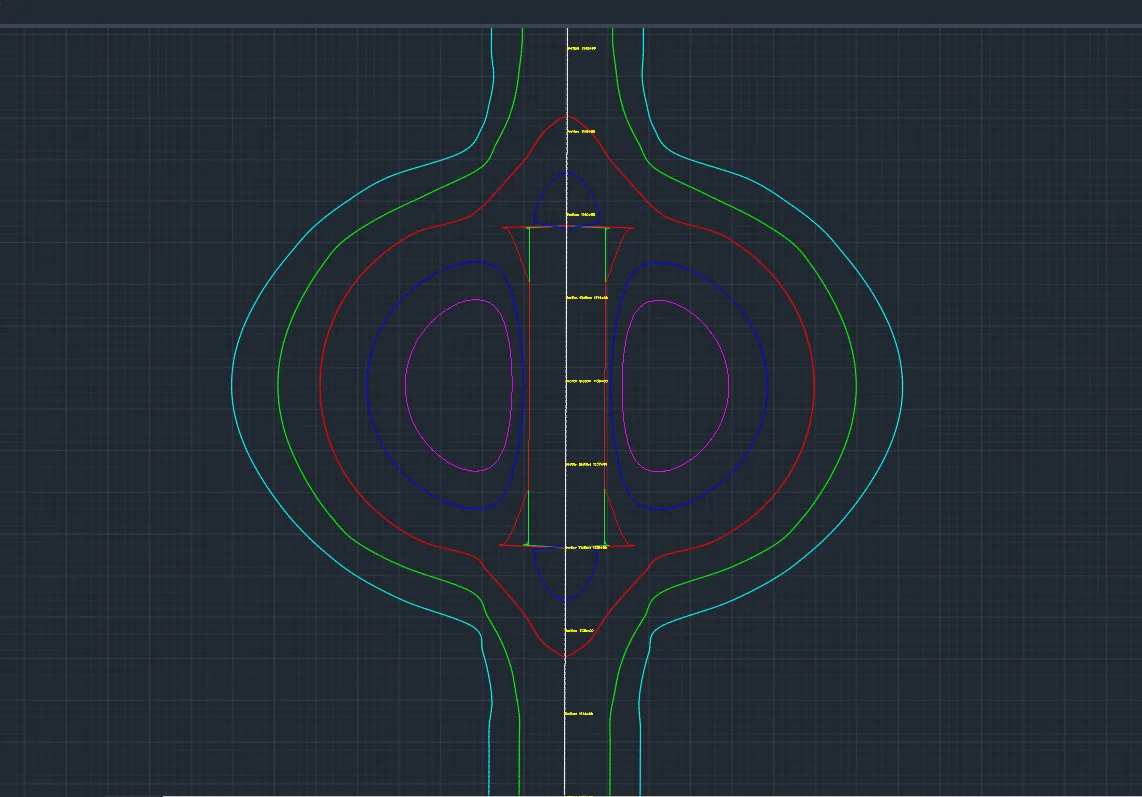
To export, choose File > Export Dxf File in the Plan View and pick where to save.
11. Read building and utility damage
Open Building Damage Level and pick a building. The Slope, Curvature, Horiz Strain and Building Strains and Distortions tabs show the slope, curvature, horizontal strain and where the building falls on the damage chart. Excel exports the summary for the whole project.
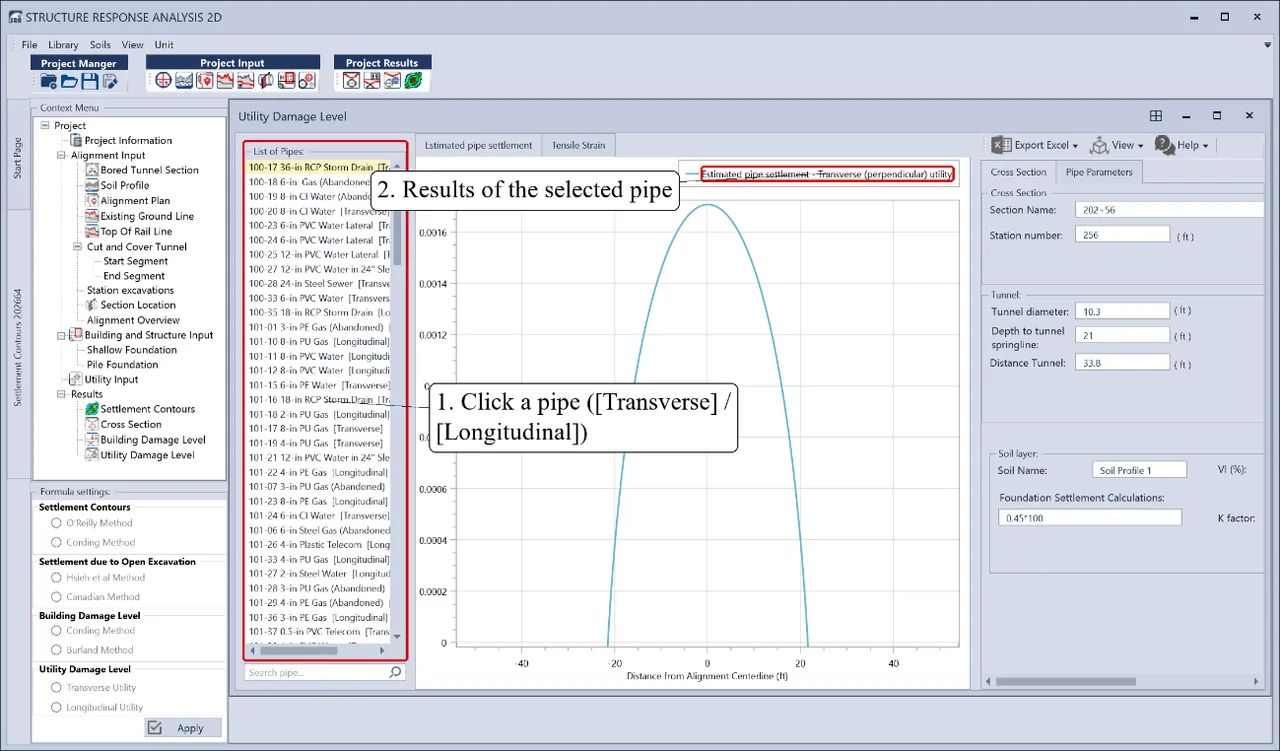
For utilities, open Utility Damage Level and click a pipe: its settlement and tensile strain are calculated and drawn at once. Names end in [Transverse] or [Longitudinal] to tell perpendicular and parallel pipes apart.
Developers and ownership
- Name
- SRA 2D – Structure Response Analysis
- Version
- 1.0.0
- Developed by
- Institute of Information Technology in Civil Engineering, Hanoi University of Civil Engineering, and VN Tunnel and Underground, Inc. (VNTU Inc.)
- Ownership
- VN Tunnel and Underground, Inc. (VNTU Inc.), including all information, documentation and the installer, under the contract between the Institute and VNTU Inc.
- Methods and acceptance
- Calculation methods, sample spreadsheets, result checking and acceptance by VNTU Inc. engineers
- System
- Windows
- Data exchange
- DXF (AutoCAD 2000/LT2000), XML, Excel
Need calculation software of your own?
SDC builds bespoke software — from small plugins to specialist engineering software developed with the client's own engineers.